Face Studio
Face Studio drives the character's face live from a face-tracking app, records takes, plays them back, and calibrates how tracking drives each shape. It's under the Animation Studio dropdown.
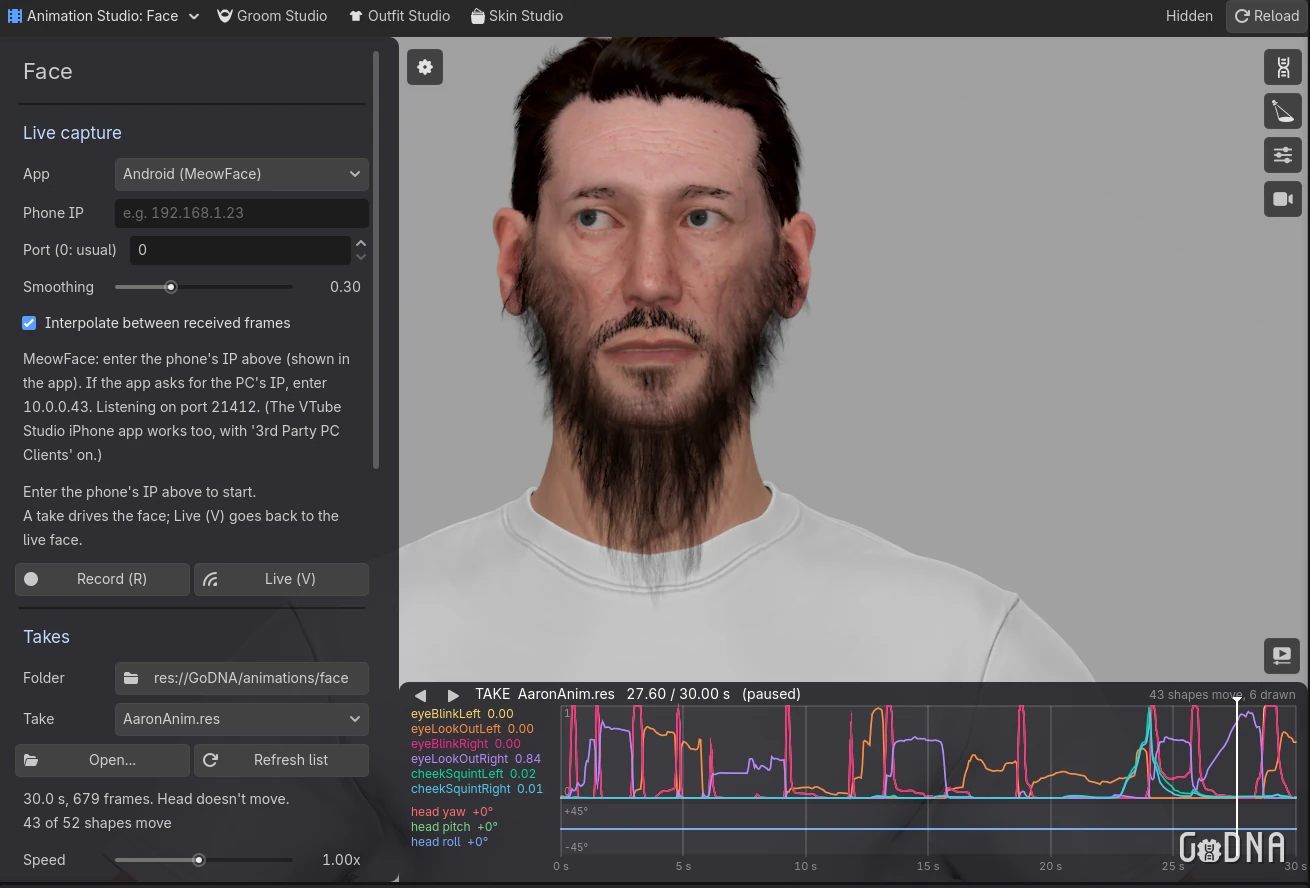
Live capture
-
Pick the App:
App Device Usual port Live Link Face (ARKit mode) iPhone 11111 MeowFace (or the VTube Studio iPhone app) Android 21412 FoxyFace PC webcam 25747 VMC: VSeeFace, XR Animator, ... PC VTuber apps 39539 -
Set up the app. The panel shows what to enter for the chosen app, including this computer's IP address:
- Live Link Face: Settings > Live Link > Add Target: this computer's IP and the port.
- MeowFace: enter the phone's IP (shown in the app) in Phone IP. If the app asks for the PC's IP, enter this computer's. The VTube Studio iPhone app works too, with 3rd Party PC Clients on.
- FoxyFace: in its VRCFT settings, IP
127.0.0.1(or this computer's IP from another PC) and the port, or turn on its Auto Connect. - VMC apps: turn on the app's VMC sender to this computer's IP (
127.0.0.1on the same PC) and the port.
- Make a face. The character follows.
GoDNA isn't affiliated with or endorsed by these apps or their makers; they're separate products under their own terms. See License and trademarks.
Port (0: usual) uses the app's usual port. Change it if another program holds it (Unreal's Live Link takes 11111 while the Unreal Editor is open). The port is open only while Face Studio is shown, so a running game or Unreal can use it otherwise.
Smoothing removes jitter (0 = off, 1 = heaviest). It smooths still poses a lot and fast moves such as blinks barely at all. Recordings are smoothed the same way.
Options
| Option | Key | Effect |
|---|---|---|
| Head rotation | H | Turn the head with the tracked head (live and takes). |
| Mirror | M | Swap left and right, as if the character were your reflection. |
| Invert head yaw / pitch / roll | I / O / U | Apps disagree on head directions; flip one if the head turns the wrong way. |
Mirror and invert apply to live tracking only.
Recording and takes
- Record (R) starts and stops a recording. The take is saved as
take_YYYYMMDD_HHMMSS.resin the takes folder (defaultres://GoDNA/animations/face/) and starts playing. - Live (V) goes back to the live face.
- The Takes list shows the folder's takes, newest first. Open... plays a take from elsewhere.
- Speed and Loop (L) affect playback only.
The timeline at the bottom draws the shapes that move most (up to six) plus head yaw, pitch and roll. Live shows the last 10 seconds; a take can be scrubbed by clicking or dragging. Play and back-to-start are at the timeline's left.
Takes are Godot Animations with value tracks on the character root (.:jawOpen, .:head_rotation), so they play
on any GoDNA character through an AnimationPlayer that is a child of it.
| Key | Action |
|---|---|
| R | Record / stop |
| V | Live |
| Space | Play / pause take |
| Home | Restart |
| Left / Right | Skip 1 s |
| Up / Down | Previous / next take |
| L | Loop |
Tracking influence
Trackers rarely send a full 1 for every shape: a wide-open mouth may arrive as jawOpen 0.5. Tracking influence
calibrates each shape per character.
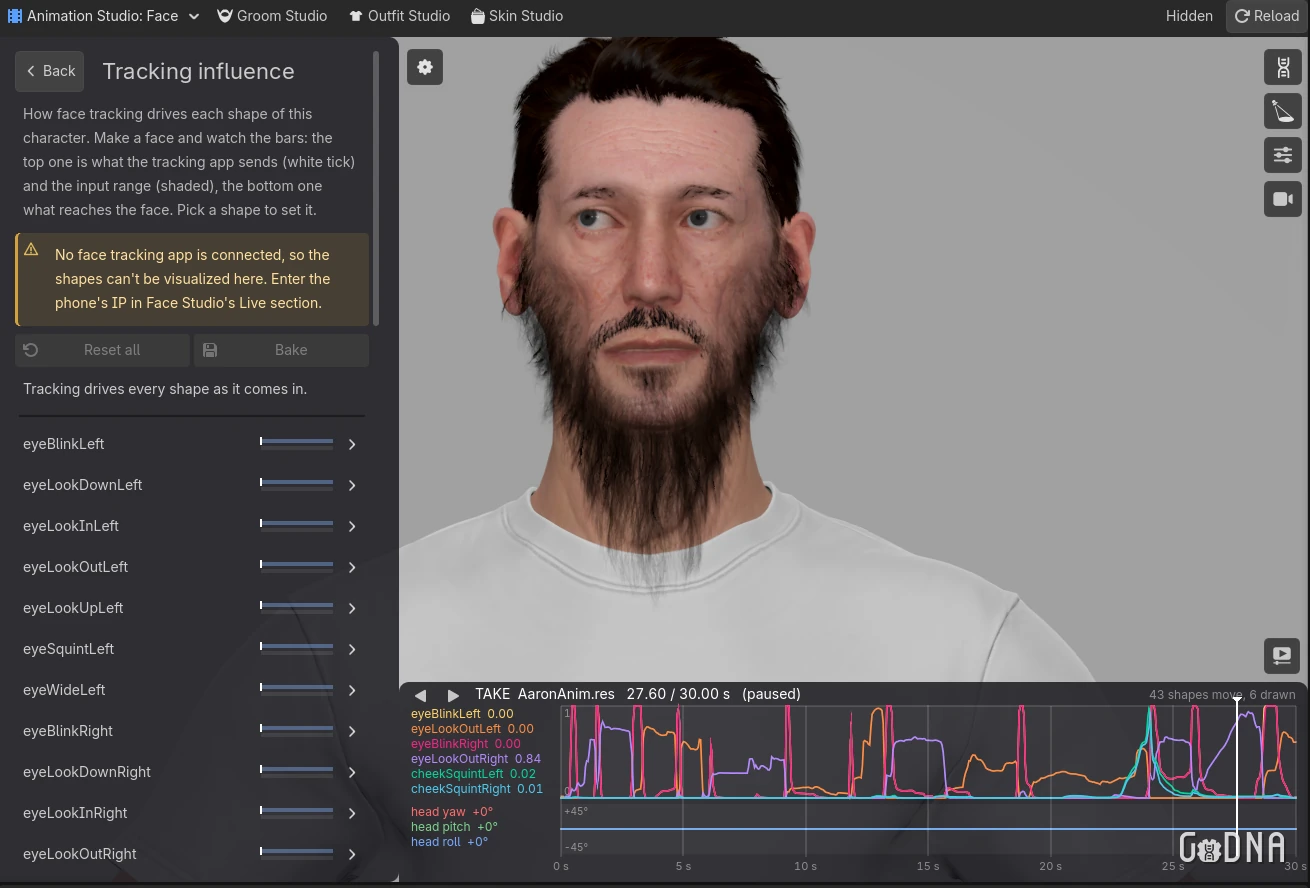
- Click Edit Influences. A page lists all 52 shapes, each with two live bars: what the app sends and what reaches the face. Make faces to see which shapes move.
- Click a shape to open its page, with a meter and three sliders:
- Input min: tracked weights at or below this become 0 (cuts noise at rest).
- Input max: tracked weights at or above this become the output max (reach the full shape).
- Output max: the weight at input max (1 = the shape as sculpted).
- Back returns to the list. Reset shape / Reset all go back to the defaults (0, 1, 1).
- Bake saves the influences into the character's
.gdna.
A warning shows on both pages when no tracked face comes in (port in use, no phone IP, app not connected or not seeing a face), and when a take drives the face instead of tracking.
Influence changes only what tracking sends. Recorded takes hold the influenced weights, so they play back as
recorded; animations and code drive the shapes unchanged. At runtime every
FaceCaptureReceiver applies the character's tracking_influence.