Character Animations
GoDNA Pro
Character Animations is in GoDNA Pro. GoDNA Standard has the simpler Animations tab. See Editions.
Animation Studio > Character Animations shows the animations packed into the character and adds more. Packed
animations play on the AnimationPlayer the character gets on import (see
Characters and import options), so a game can call play("Jog") on it straight away.
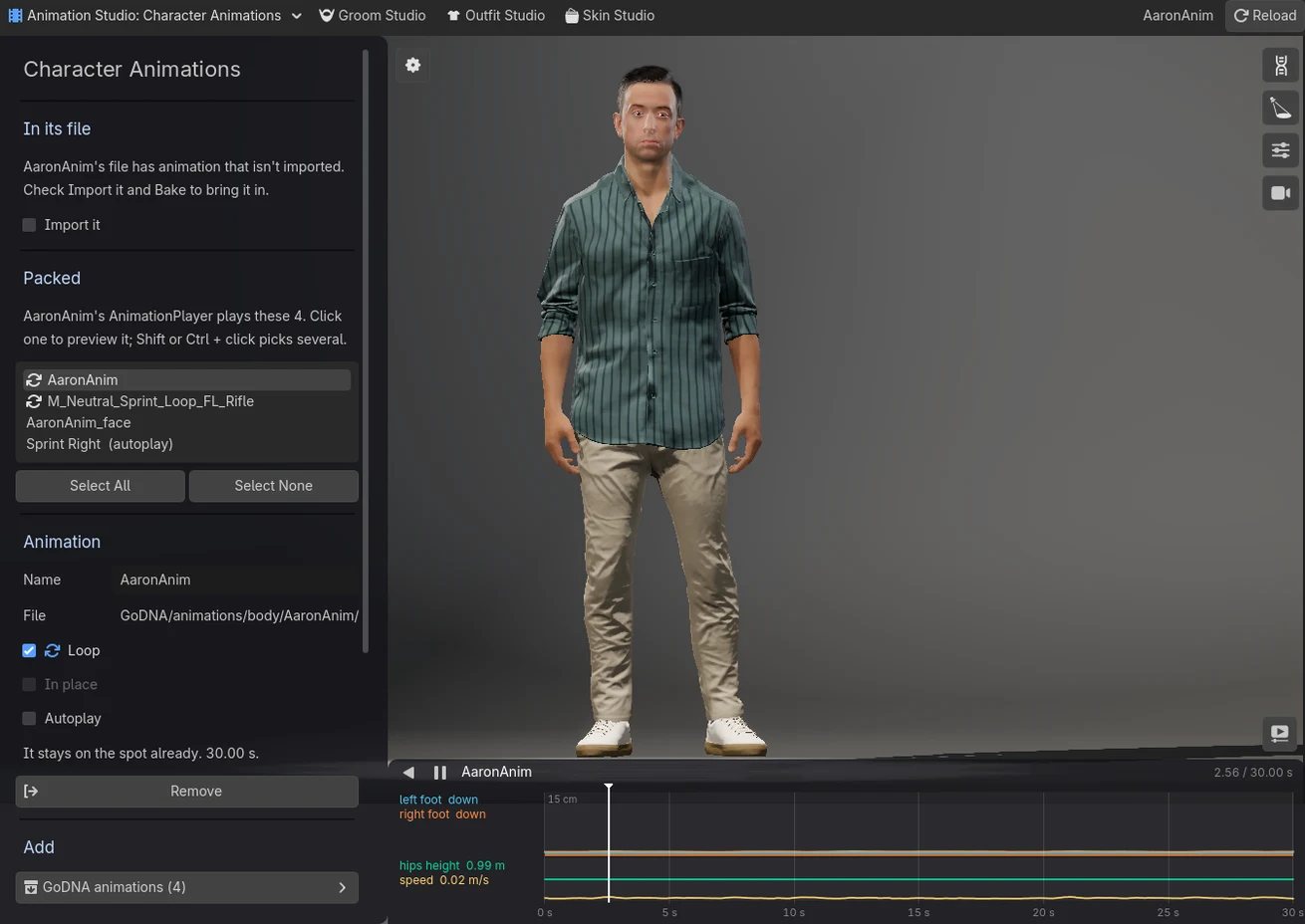
In its file
Shown for a character whose own file carries animation, such as a Character Creator character exported from iClone
with a motion. It lists that animation (click it to preview it) and has Import it: off leaves it out of the
character on the next Bake (the .gdna's options.import_motion). Its copies in Body Studio and Face Studio stay, to
combine or pack.
The list
Every animation the character's AnimationPlayer will have, with its name. A loop icon marks the ones that loop;
autoplay, in place, file missing and not retargeted show next to the name. Click one to preview it on the character, as it will
play in the game. Up / Down pick the previous / next one.
- Shift or Ctrl + click picks several; Select All / Select None. With several picked, Loop, In place and Remove apply to all of them. In place is only set on the ones that move over the ground.
- Filter by name (shown once there are more than a few) narrows the list. Select All picks only what it shows, and animations it hides are dropped from the selection.
Animation
Settings for the picked animation:
- Name: the name in the
AnimationPlayer. Two animations can't share one. - File: where it comes from. The file itself is never changed.
- Animation: for files holding several animations (an FBX or glTF animation library), which one.
- Loop: start over at the end. Off plays it once and holds the last frame.
- In place: keep an animation that walks, runs, turns or stops on the spot. All its travel over the ground is
taken out, curves and pivots included, and the sway and bounce stay. Use it when your game moves the character itself (a
CharacterBody3D, for example). The line below says how far the animation travels; for animations that already stay on the spot, In place is greyed out. - Autoplay: play this one when the character enters the scene. Only one can.
- Remove: take it out of the character (all the picked ones).
Preview
The timeline under the view (the button at the bottom right slides it up and down) plays the animation you clicked: play / pause (Space), back to the start (Home), click or drag to scrub. Like Body Studio's, it graphs the feet, the hips' height and the speed over the ground. Each animation starts with the character on the center of the stage, even when the clip itself starts somewhere else, and the view is centered above the timeline. The camera follows the character (C switches between full body and face).
Add
Each of these opens a checklist of the animations found:
- GoDNA animations: the body clips, face takes and combined animations in
res://GoDNA/animations/(none checked to start with). - Files...: one or more animation files or animation libraries (all checked).
- Add Folder...: every animation in a folder and its subfolders, such as an animation pack (all checked).
- A folder in the project is used where it is. FBX, glTF and DAE files there that aren't set up as retargeted animations yet (imported as scenes, or with Retarget From Off) are counted, and Set Up N Files as Animations imports them all as Animation Libraries with Retarget From set to Detect (Mixamo or UE5 Mannequin, from their bones). Their other import settings are kept.
- A folder anywhere else (a Fab download, for example) is listed straight from disk, one line per file.
Import and Pack N opens a folder picker asking which project folder to copy the checked files into
(
res://GoDNA/animations/body/<folder>/to start with, so Body Studio lists them too). Pick one and it copies only the checked files, keeping their subfolders, imports them already set up the same way, and packs them. Files already there aren't copied again; Cancel copies nothing.
You can also right-click a folder or animation files in the FileSystem dock: GoDNA: Add to Character Animations opens the checklist for them (with a character loaded), and GoDNA: Set Up as Animations only sets them up and imports them (see Retargeting animations).
The checklist
- A pack with subfolders is grouped by subfolder: each heading shows how many of its animations are checked
(
Walk (12 / 224)), its check box checks or unchecks them all, and its arrow folds it away. - Click a name to preview it on the character; the check box next to it is separate. A file from outside the project is copied in and imported on its own first, so you can look before you choose. Up / Down preview the previous / next one.
- Select All / Select None and Filter by name (on names and subfolders) for long lists.
- Shorten names (on by default) leaves out the start and end every name shares, cut at
_,-,.or a space, soM_Neutral_Walk_Fwd_RifleandM_Neutral_Run_Fwd_RiflebecomeWalk_FwdandRun_Fwd. The list shows the names the animations will get. Subfolder in front starts each name with its subfolder (Walk_Fwd,Crouch_Fwd), for packs whose file names only make sense with their folder. - In place for the ones that move puts the animations that walk, run or strafe in place as they're packed, and
leaves idles and turns as they are. Turn it on when your game moves the character itself (a
CharacterBody3D, for example): otherwise the mesh walks away from its collision shape and snaps back each time the clip loops. Leave it off for root motion. You can change it per animation afterwards. - Animations already packed are shown checked and greyed out.
- Body clips that weren't retargeted on import are marked not retargeted in orange and left unchecked: their bones aren't Mixamo or UE5 Mannequin / MetaHuman ones, so they wouldn't play on the character. Set GoDNA > Retarget From to Custom BoneMap in the Import dock and pick a BoneMap for their rig.
Packed animations get the names the list shows (made unique if one is taken). New clips from animation libraries
loop; Animation files keep their own setting. After packing several, they're all picked in the list, so one click on
Loop or In place changes them together.
Bake
Bake saves the list into the character's .gdna (animations) and imports it again, together with every other
studio's unbaked changes. Until then, Bake * shows there are changes. An animation file that is referenced as is
(no loop change, not in place) updates on the character when you save it again; others are copied into the imported
character with their settings, so reimport the character after changing their file.